

Canva Brush and Canva Craft: How They Work Together
Canva Brush is Canva Research's vision-language model for editing designs with natural-language instructions. Canva Craft is its image-generation model. They serve complementary jobs: Craft supplies imagery; Brush helps refine the composition that uses it. Both come from Canva Research, according to Canva's Brush announcement.
For readers of CanvaBrush, the useful question is what your next revision needs to change. Do you need a new picture, or do you already have the picture and need a better layout? This guide explains that distinction and walks through a suggested coffee-poster workflow.
How are Canva Brush and Canva Craft related?
The two models belong to the same research effort, but their names are not interchangeable. Canva introduces Craft as an image-generation model with 2K output and flexible aspect ratios. Those image specifications should not be treated as Brush export specifications.
Use this task-based comparison when planning work:
| Your next task | Suggested starting point | What to check afterward |
|---|---|---|
| Create a new illustration for a poster | Craft image generation | Subject, composition, unwanted details |
| Revise the headline in a prepared design | Brush design editing | Exact wording, line breaks, surrounding spacing |
| Rework a presentation for another channel | Brush design editing | Crop, hierarchy, legibility at the new size |
| Produce a new campaign from a visual brief | Generate imagery, then compose and refine the design | Both the image and the final page |
These are workflow recommendations, not a requirement to use both models. If your existing photo already works, keep it. If you only need an illustration with no designed page around it, a separate layout-editing step may add nothing.
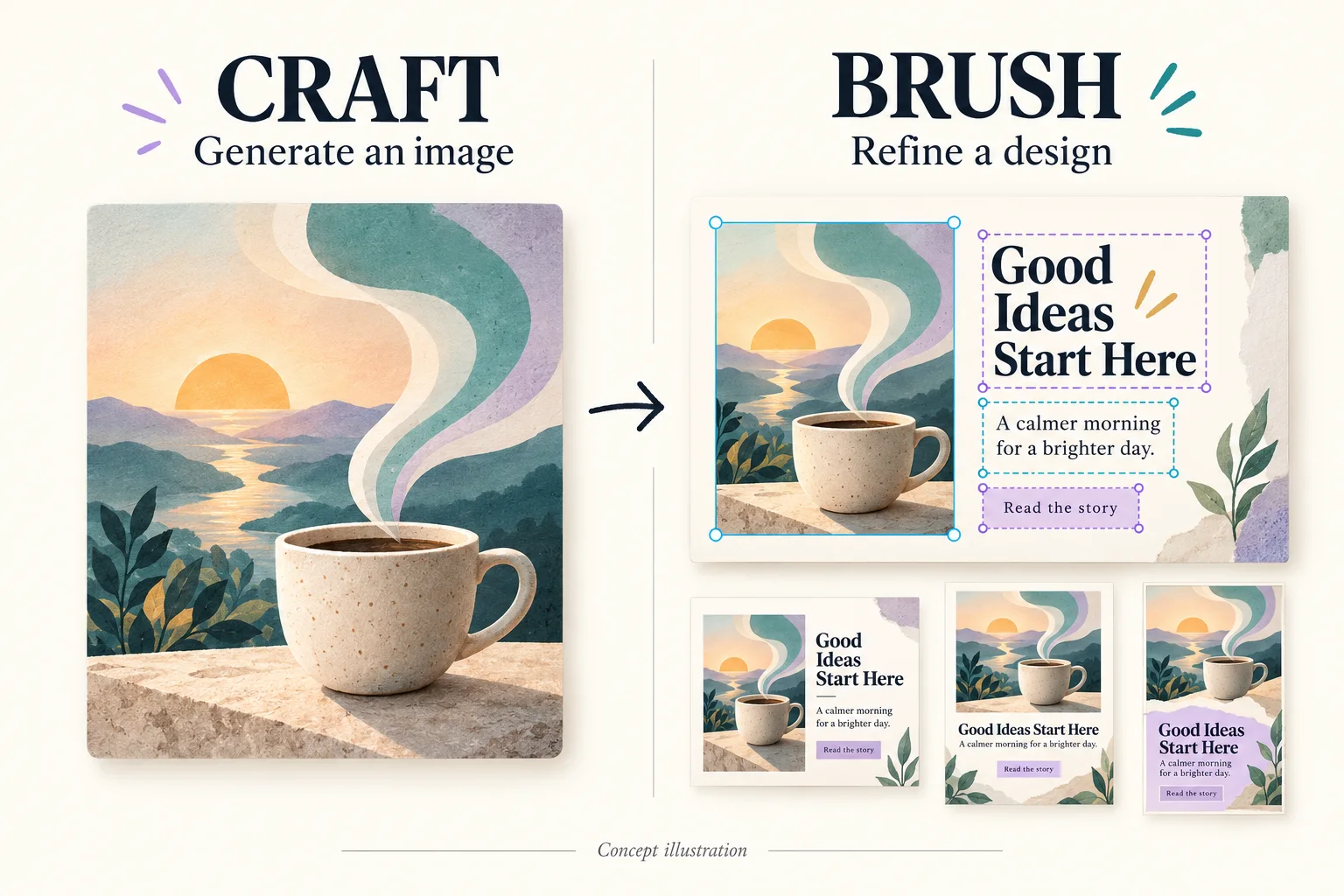
Generated concept illustration. This is not a Canva interface screenshot, a Craft-generated sample, or a tested Brush result.
A coffee poster: from image brief to design revision
Suppose a café needs a portrait poster for a Saturday tasting. The following prompts are original examples to adapt, not outputs from a live model comparison.
Start by deciding which information must remain easy to change. Keep the event name, date, and booking details as separate text in the design you assemble. Treat the illustration as one visual asset; a flat exported picture should not be assumed to contain independently editable text layers.
For the illustration, try a brief such as:
A single ivory ceramic coffee cup on a sunlit wooden counter, with soft steam against a muted teal background. Warm morning light, restrained editorial illustration, no lettering, no logo. Leave quiet space above the cup for a headline to be added later.
For more on composition, see the Canva Craft prompt guide. Before generating, check that the brief describes the picture rather than the entire finished poster. This keeps the image task separate from the copy you will add next.
Place the chosen image into a Canva design and add the approved event copy. Then make the editing request specific:
On the first page, change the headline to “SATURDAY COFFEE TASTING”. Keep the cup image and the existing booking details unchanged. Give the headline enough room to read without overlapping the cup.
Review the wording and the supposedly unchanged elements before requesting another adjustment. If the headline wraps awkwardly, revise that issue separately. If the cup itself looks wrong, return to the image brief rather than trying to solve the picture through text layout changes.
For a social version, specify the destination format and the information that must survive the crop. Check the result at phone size; a readable desktop preview is not enough.
Keep access and output expectations separate
Use Canva AI for the Brush step in this suggested workflow. Canvabrush.com's image-tool credits are separate from your Canva account; a purchase here should not be treated as access to either official model inside Canva.
A generated picture and an editable page are different deliverables. Before handing work to a colleague, check whether they need an image file, the design with its text elements, or both. Do not promise editable text layers merely because lettering appears inside a generated picture.
Choose by the part of the deliverable that needs work
Before the next prompt, write down three things: the element to change, the elements to preserve, and how you will judge the result. For a poster, that might be “replace the headline, keep the illustration and booking link, and check the final wording at print size.”
That small brief gives each revision a clear purpose. Use image generation when the missing piece is the picture; use design editing when the work is in the arrangement, copy, or format around it.
Prepared by CanvaBrush Editorial. Product sources checked October 30, 2026. Availability statements above describe Canva's published launch guidance; this article does not claim account-level testing.