

Canva Brush: Update Headings Across a Multi-Page Design
To update headings across a multi-page design with Canva Brush, define the pages and heading treatment first, then list the exceptions. After the edit, check every affected page alongside the pages you asked to preserve. A consistent color is only part of a successful update: the words, wrapping, and spacing still need to work on each slide.
Canva's Brush announcement explicitly describes making a change across a multi-page design instead of updating headers individually. For CanvaBrush readers, this guide turns that capability into a practical editing brief. The workflow and prompts below are editorial recommendations, not a recorded Brush test.
Decide what “all headings” actually includes
A deck can contain a cover title, section titles, ordinary page headings, chart labels, and a large quotation. They may look similar while doing different jobs. Before asking for a shared change, decide which of those groups belongs in the request.
Consider a fictional six-page studio presentation. The cover and closing quotation have their own composition, while the four middle pages need a consistent heading style. You want to change those four headings without rewriting their wording or redesigning the rest of the deck.
Write a page map before opening the editing conversation:
| Page | Role | Requested treatment | Details to preserve |
|---|---|---|---|
| 1 | Cover | Leave unchanged | Large display title and image |
| 2 | Studio overview | Apply shared heading style | Heading wording, body text, photograph |
| 3 | Services | Apply shared heading style | Heading wording and service list |
| 4 | Process | Apply shared heading style | Heading wording and diagram |
| 5 | Project example | Apply shared heading style | Heading wording, image, and caption |
| 6 | Closing quotation | Leave unchanged | Quote, attribution, and layout |
This is a briefing aid, not a claim that Brush provides a page-map control. Page numbers refer to the order you can see in your own design; recheck them if you add or remove pages.
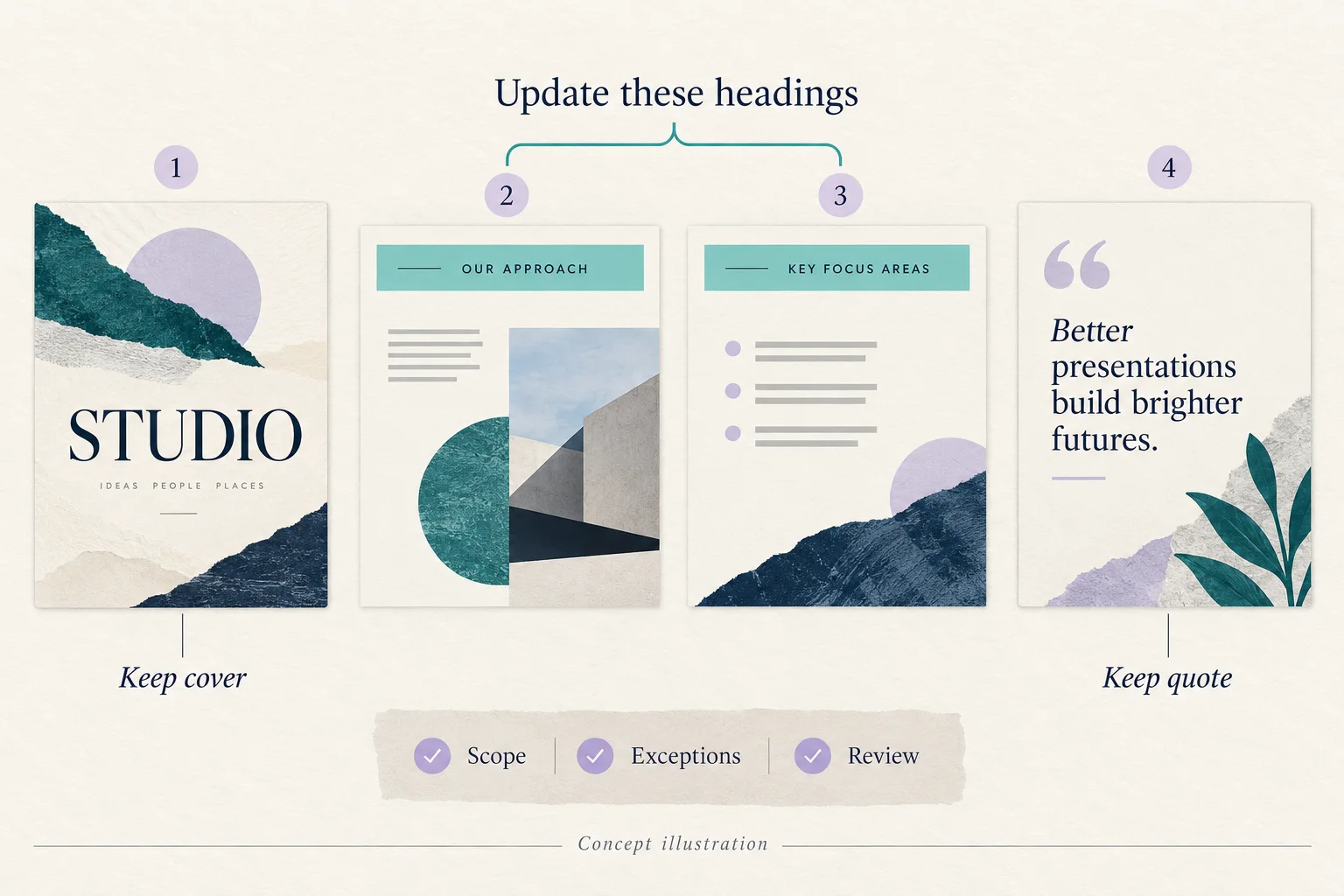
Original AI-generated concept illustration of edit scope. It is not a Canva interface, an actual Brush result, or evidence of an automatic page-locking feature.
Give Brush a shared rule and explicit exceptions
Canva's published instructions say to open, attach, or link a design in Canva AI and choose Brush from the dropdown. Supported design edits launched for Canva Pro subscribers. Confirm the options available in your account before relying on this route. Our Canva Brush introduction explains the model and its entry point in more detail.
Keep a reference copy of the current deck so you can compare the revision with what was approved. Then adapt a prompt like this:
In this six-page presentation, update only the main heading on pages 2 through 5. Use a consistent dark navy color and left alignment, with enough space between each heading and the content below. Keep each heading's existing wording. Leave page 1 and page 6 unchanged. Preserve the body text, photographs, diagram, captions, and their content on pages 2 through 5.
The page range gives the request a boundary. The shared rule describes the intended consistency, and the exceptions tell the model which visually prominent text should keep its existing treatment. These instructions express your intent; they do not guarantee that every other element will remain identical.
If your team has an approved specification, replace “dark navy” with the actual color value and describe the heading treatment precisely. Do not invent a font or size just to make the prompt longer. Use values you can verify in the resulting design.
Separate a style change from a wording change
Changing the appearance of four existing headings is different from replacing their copy. Combining both jobs makes it harder to spot an unintended rewrite.
For the example above, complete the style review first. If page 3 then needs new wording, make a separate request:
On page 3 only, replace the main heading with “WHAT WE MAKE”. Keep the heading treatment already used on pages 2 through 5. Keep the service list and all other content unchanged.
Read the replacement character by character. Then inspect its line break: a longer heading may wrap even if the style settings are consistent. If you can make a small correction directly in the editor, use that option. Canva's announcement says the resulting design remains editable, so a final manual adjustment is part of the workflow.
Review in three passes
Start with the content, then inspect the composition, and finish by checking the exceptions. This order keeps a convincing visual result from distracting you from a changed fact.
Pass 1: wording. Compare the headings on pages 2 through 5 with the reference copy. Read body text, numbers, and captions that were supposed to remain unchanged. Record any unexpected change before requesting another edit.
Pass 2: layout. Look at each heading in context. Check the distance to the content below, alignment with the rest of the page, and whether wrapping changes the visual hierarchy. View the deck at a useful presentation size rather than only at a large editor zoom.
Pass 3: exceptions. Compare the cover and quotation slide with the reference. Their different appearance is intentional. Do not treat every visual difference between pages as a problem that needs another global request.
A simple review log can be enough: “page 2 approved; page 3 wraps; page 4 approved; page 5 caption moved; pages 1 and 6 checked.” That gives the next revision a concrete target.
Fix the smallest remaining issue
If one page needs repair, identify that page and the specific conflict instead of repeating the full-deck brief. For an awkward heading on the process page, try:
On page 4 only, adjust the main heading so it sits above the process diagram without overlap. Keep its wording and dark navy color. Preserve the diagram content and all other pages.
If the same collision appears on several pages, revisit the shared rule. A heading treatment that fits a short title may not leave room for a longer one. You can allow a controlled exception or shorten approved copy after agreement with the person responsible for it. Uniform settings should serve readability.
When an edit changes too much, return to your reference version and narrow the task. If the work is actually a change inside a photograph or a hand-drawn review mark, our Brush, Draw, and Magic Edit comparison helps identify the appropriate workflow.
Share a deck that has been checked page by page
Before sharing, review the format the audience will receive. Open the exported file if you export one, and check the headings, exceptions, images, and factual copy again. Keep the editable design for later corrections.
Canva's launch announcement lists Brand Kit support as ongoing work, so an approved style brief is useful even when account features differ. Confirm your current controls rather than assuming a brand workflow is available everywhere. Canvabrush.com's image-tool credits are separate from Canva account access; perform the Brush editing step in Canva AI.
For your next deck, begin with one well-defined family of headings and a short exception list. That makes the multi-page request easier to write and the result easier to approve.
Written by CanvaBrush Editorial. Canva's Brush announcement checked November 1, 2026. The presentation, prompts, and review method are original suggested examples; no account-level editing test or time-saving measurement is claimed.