

Canva Brush vs Draw vs Magic Edit: Choose the Right Tool
Canva Brush edits designs from written instructions, Draw adds marks you make yourself, and Magic Edit changes photo content using a selection and a description. The word “brush” can appear in more than one of these workflows, so start with the part of your work that needs to change.
For CanvaBrush readers, this guide separates those three tasks using Canva's product documentation. It is a comparison of documented workflows with original examples, rather than a hands-on quality test. For the model's background, read our introduction to Canva Brush.
Three tools, three different starting points
| Question | Canva Brush | Draw | Magic Edit |
|---|---|---|---|
| What are you working on? | The structure and elements of a design | Strokes and annotations on a page | Content within a photo |
| How do you direct the task? | Describe the design change | Draw or erase with your pointer or touch input | Select an area or object and describe the change |
| A suitable example | Restyle a presentation | Circle a detail for a teammate | Replace a decorative object in a photo |
| What should you review? | Layout, wording, and every affected page | Stroke placement, weight, and clarity | Selection edges, lighting, and visual consistency |
These starting points help scope the job. A campaign may need more than one tool, but a simple correction rarely needs every step.
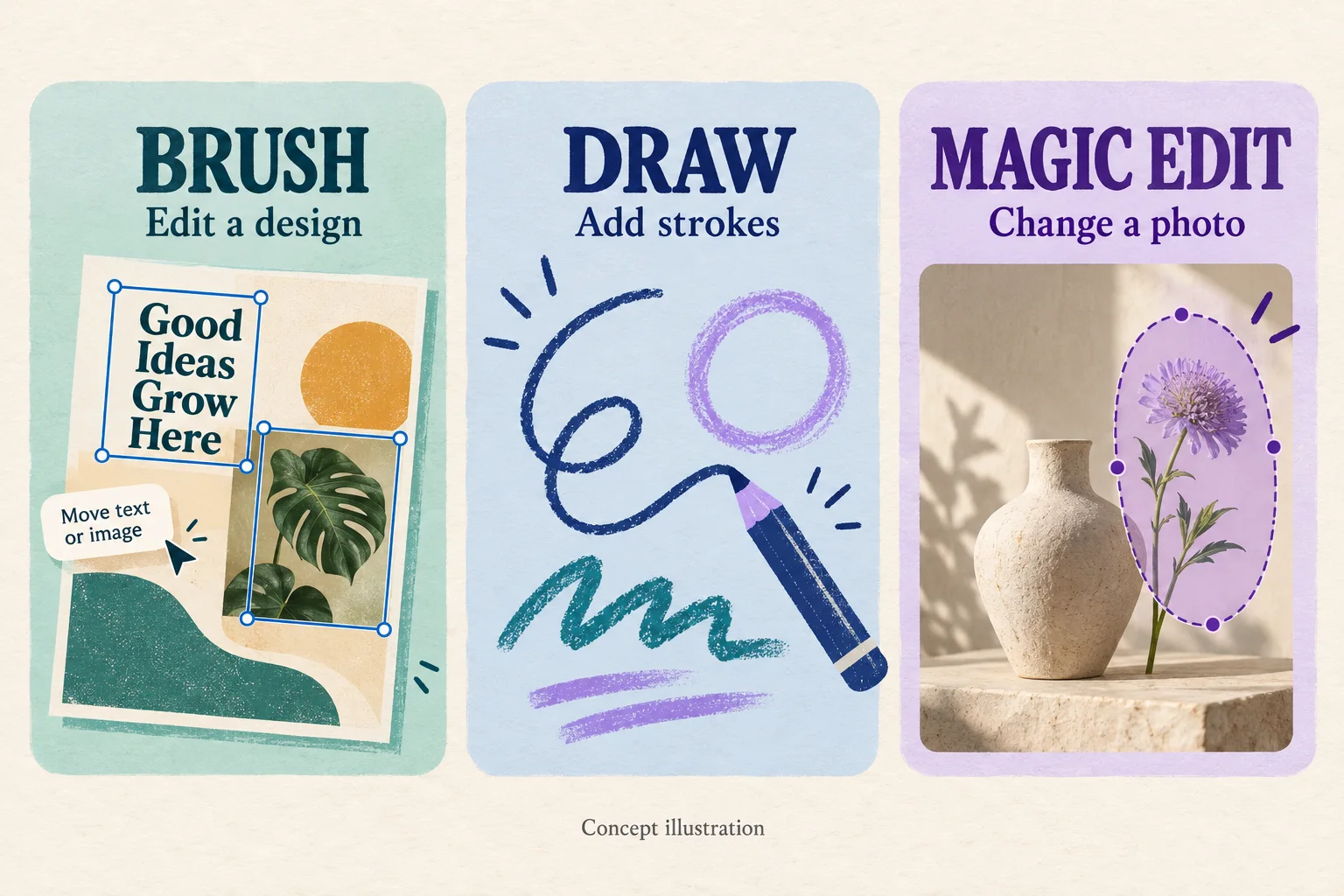
Original AI-generated concept illustration. The cards explain the tasks; they are not Canva interface screenshots or tested outputs from these tools.
Use Canva Brush when the composition needs work
Canva describes Brush as a vision-language model for design, with examples including restyling, updates across multiple pages, and adapting a design to another format. Its launch instructions say to open, attach, or link a design in Canva AI and select Brush. Supported edits launched for Canva Pro; check your account for current availability.
Consider a fictional three-page studio presentation. You have approved the photographs but want a calmer visual direction. A useful brief names the design-level change and the information you want preserved:
Restyle this three-page studio presentation with a warm cream background and dark navy headings. Keep the existing photographs and all approved copy. Check that each page has a clear heading and readable spacing.
Treat this as a suggested instruction to adapt, not a promise that every preserved detail will remain identical. Compare all three pages before accepting the revision. Pay attention to text wrapping and any content that moved as the style changed.
If the requested correction is a single date and you can select its text element directly, a manual text edit may be the quickest route. Choose a workflow because it fits the task, rather than because AI is available.
Use Draw when you want to make the mark yourself
Canva's Draw instructions describe pen, marker, highlighter, and eraser options, with controls for thickness and transparency. The documented editor path is Tools → Draw. This is useful for sketching and feedback that depends on the shape or position of your own stroke.
Suppose a teammate needs to know which item in a presentation photo needs attention. A circle and an arrow may communicate the feedback more clearly than a long instruction. Keep the mark separate from any actual production change: highlighting an object for review does not mean the object itself has been edited.
Before sharing an annotated page, ask whether the marks are intended for the audience or only for the team. Keep a clean version if the final deliverable should not contain review notes. Inspect the annotation at normal viewing size; an oversized mark can cover the very detail you want someone to inspect.
Use Magic Edit when the change is inside the photo
Canva's Magic Edit help page describes selecting a photo, choosing Edit → Tools → Magic Edit, selecting content, and entering a description before generating. The help page lists All, Brush, and Click selection options. The Brush option defines the area to modify; it is distinct from choosing the Brush model in Canva AI.
Imagine that the presentation contains a still-life photo with a vase and a small decorative flower. If only the flower needs to change, start with the photo task rather than restyling the deck. An original example description is:
A small white paper flower beside the ceramic vase, with soft side lighting and a subtle shadow on the tabletop.
Select the region where the replacement should appear, then check whether the result belongs in the scene. Canva recommends making the brushed area roughly match the shape of the intended addition. Its guidance also notes possible mismatches in lighting, color, or style, unexpected results, and pixelation in the edited region.
For review, examine the edge of the replacement, the shadow underneath it, and the scale next to the vase. If you need approved event wording, put it in a separate text element instead of treating a generated photo edit as a reliable typesetting step.
Choose the task before opening a tool
A short decision sequence keeps the brief focused:
- Locate the change. Is it page structure, a mark you want to draw, or content inside a photo?
- Name the deliverable. Do you need a finished design, a review annotation, or an edited image?
- Set one acceptance check. For example, all page headings remain readable, the circle identifies the correct object, or the replacement matches the scene's lighting.
- Compare with the original. Look for unintended changes before continuing to another task.
You can use all three in one project: Draw to communicate feedback, Magic Edit to revise a photo, and Brush to refine the page around the chosen image. That sequence is a suggested way to organize work, not a documented automatic handoff between the tools.
Where this leaves image generation and site credits
If the job begins with no image at all, that is another starting point. Our Canva Brush and Canva Craft guide explains the distinction between generating imagery and refining the design around it.
For Brush, start in Canva AI; for Draw and Magic Edit, follow the corresponding editor instructions linked above. CanvaBrush's own image tools use their own model choices and credits. A site credit balance should not be treated as access to these features in a Canva account.
Written by CanvaBrush Editorial. Sources checked October 31, 2026: Canva's Brush announcement, Draw help, and Magic Edit help. Examples and review checks are editorial suggestions; availability and interface options can vary by account.